
How to send Push Notifications to your Players
Push notifications are a great way to communicate instantly with your players. They will only work for those players who have the BingoMeNow!!™ App installed on their mobile phones, though. Users that purchase exclusively on the Desktop version will not receive them.
To start, go to the Marketing Campaign section on the backend. (to access the backend head to http://backend.bingomenow.com)
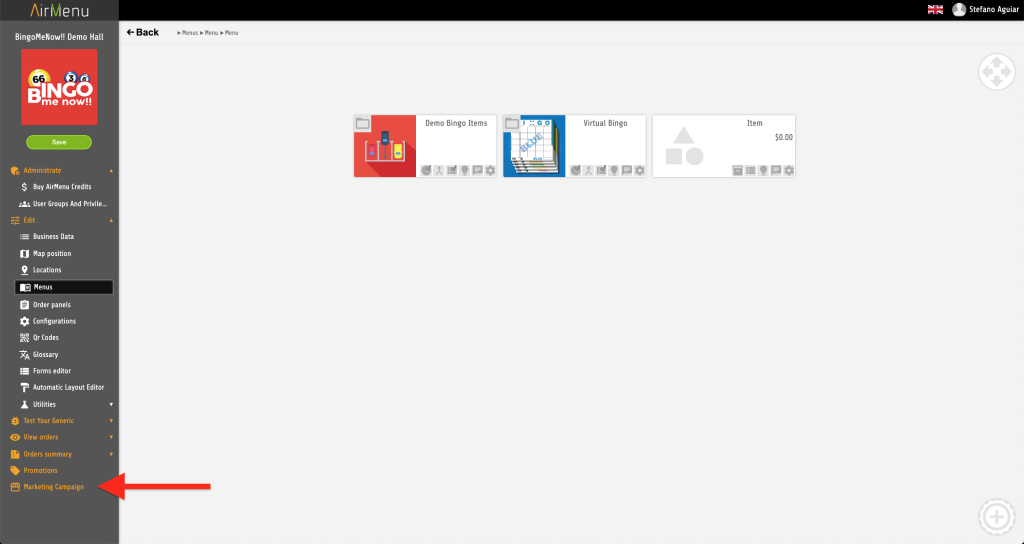
Start a new marketing campaign by clicking Marketing Campaign on bottom right corner.
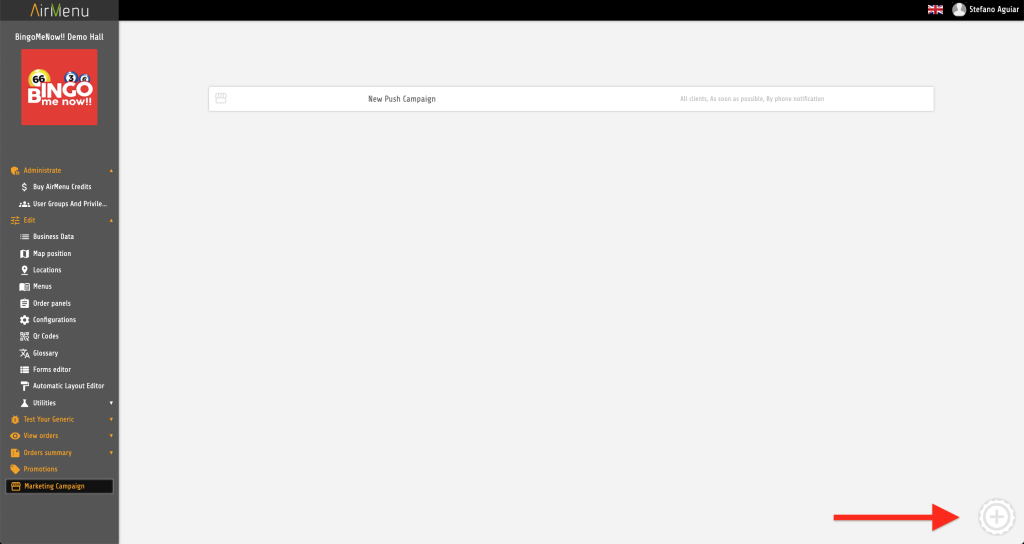
Fill in the form accordingly.
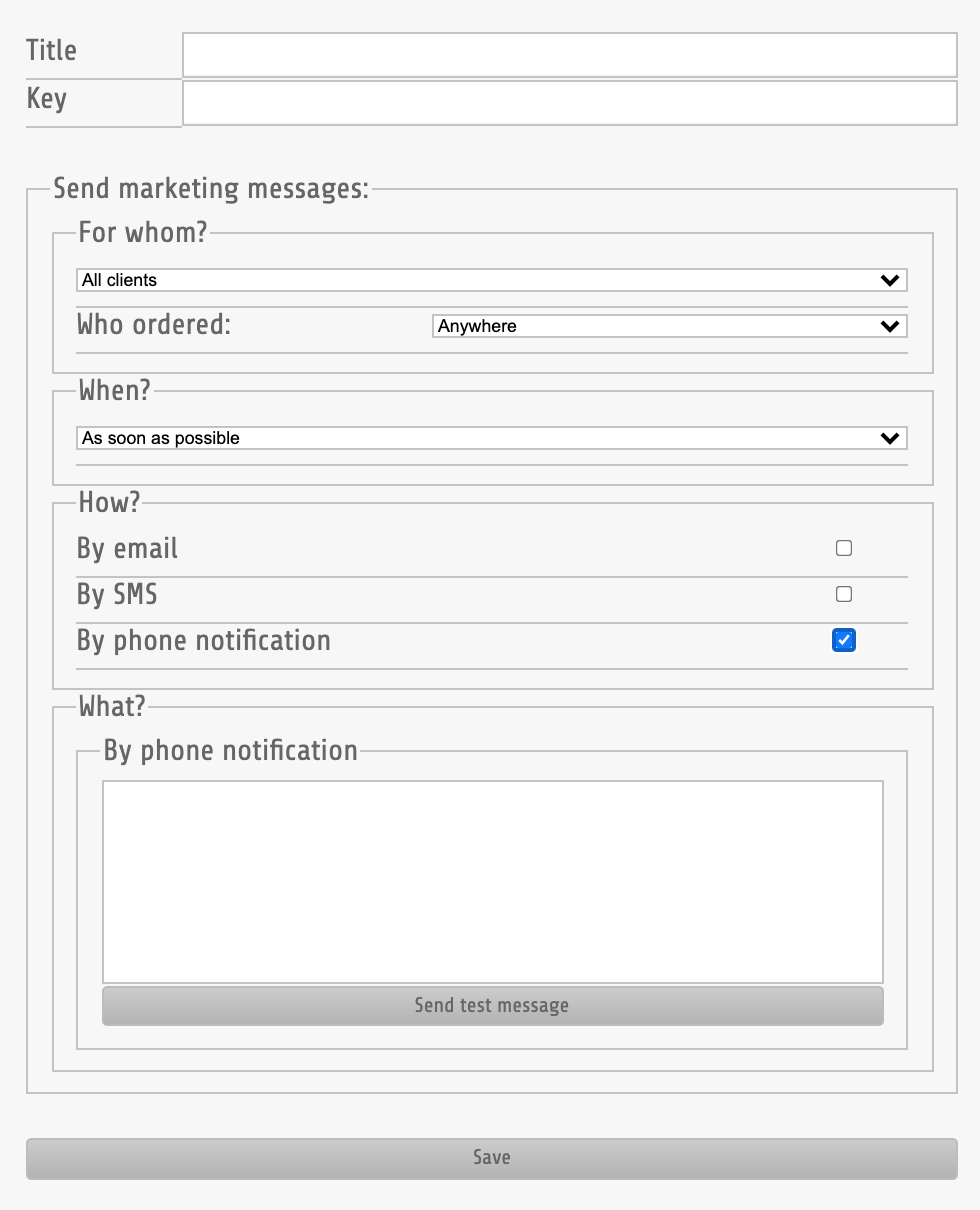
Title: The Title of your message will be displayed on the user’s phones. Key: Insert a simple word as and database identifier, this will not be used elsewhere. For whom? Your options are:

Clients who order n orders: define n as the number of orders a client must have to activate the sending Clients who order an item in n orders: choose a particular item that clients must have ordered within a defined n amount of orders counting from last to first Clients who order items from a family in n orders: clientes who ordered any item from within a particular familyWhen? This option relates to when, once the player/user triggers the desired restrictions defined on the previous section, the message will be sent.

As soon as possible: immediately On a give date: choose the date At a given time of the week: choose the day of the week and hour N minutes after finding a client: Define N as the amount of minutes after the client triggers the restrictions.
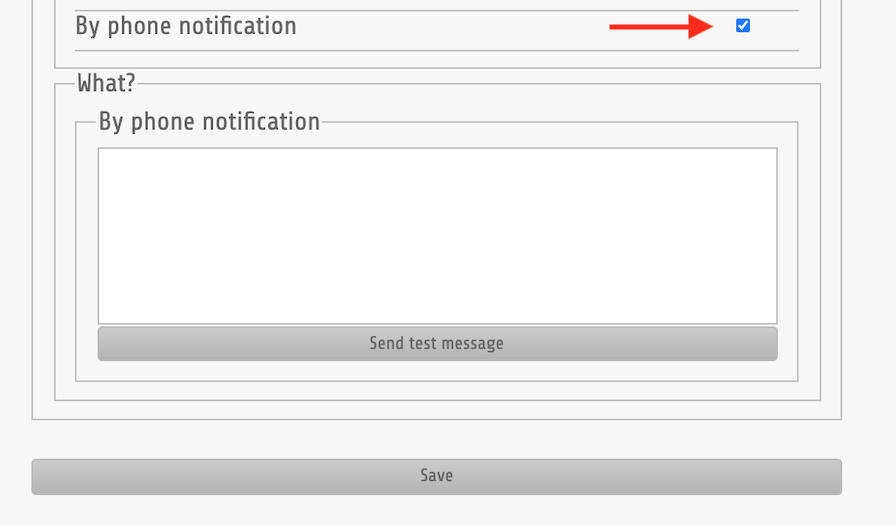
Check the By phone notification checkbox to send messages via push notification.
Then right your message on the box below.
You can send a test message to any particular user (must know the user’s email) or yourself. Once satisfied click SAVE.
After saving you are taken back to the Marketing Campaign section and can view your recently created campaign together with any other that might have been created before.
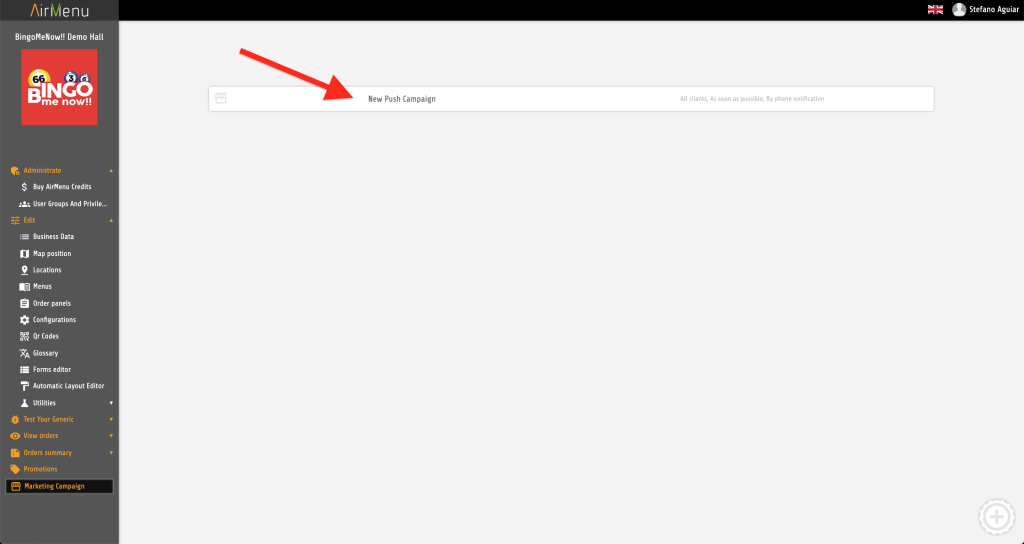
Click that campaign to view the current status and activate/deactivate.
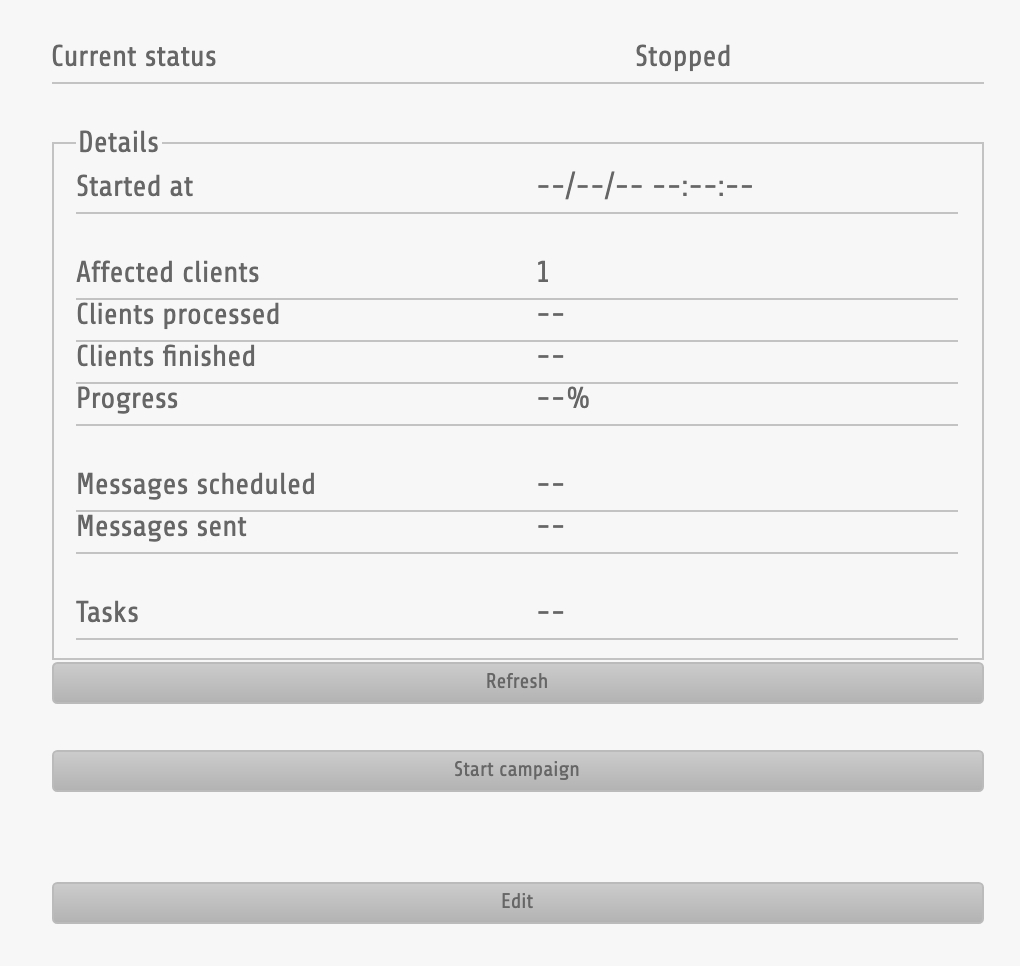
Click Start campaign to send the messages.
Every time a new customer triggers the restrictions created a new message will be sent out to that customer.
If you want this to be sent only one time, stop and delete the campaign after the progress reaches 100%.