
How to View the Seat Chart for a Particular Day
If you run multiple sessions at once, the Orders Panel will summarize all of the orders for multiple sessions, rendering the visualization a bit confusing, especially on the seat chart.
You can select a date and view only the orders for that particular date. Here’s how:
On your seat map panel, click the small gear icon to the top right.
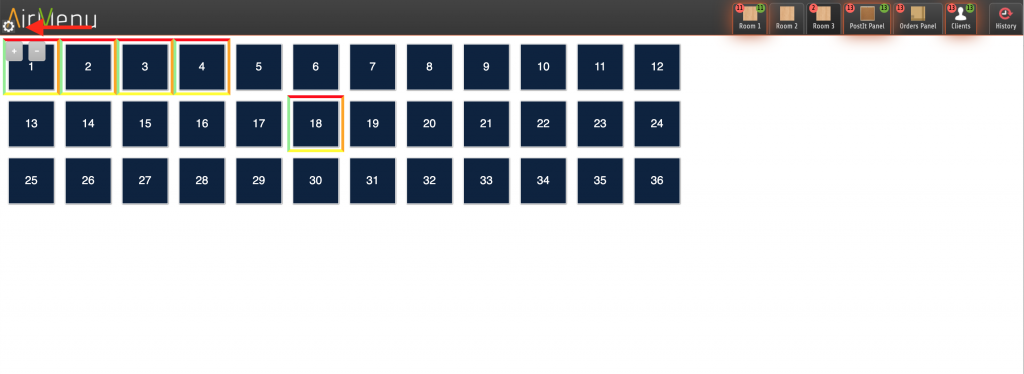
The seat map. Yours may look different.Once you click the gear icon, the Preview Booked Orders selector is displayed. Select a date range you’d like to filter the orders for and click get data.
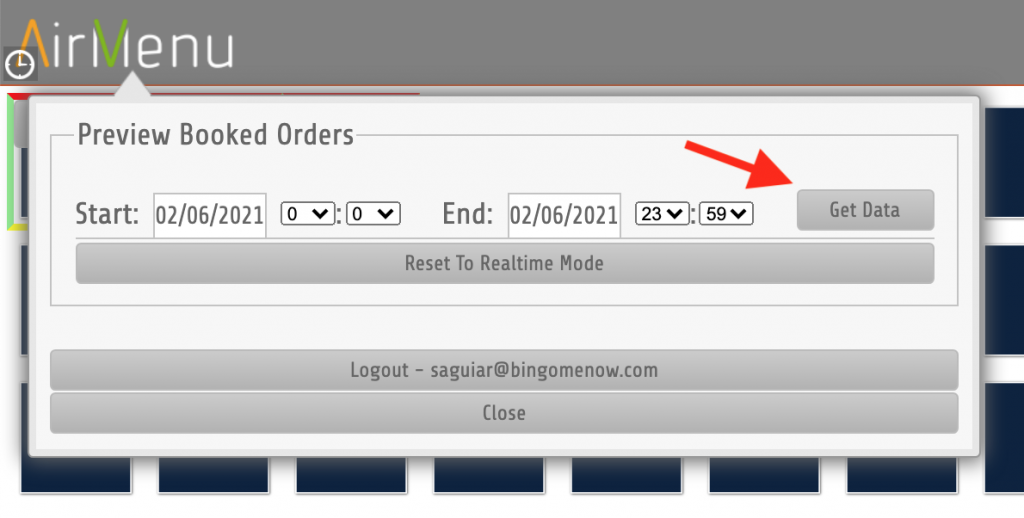
The Preview Booked OrdersOn the example above we will be displaying only orders for 2/6.
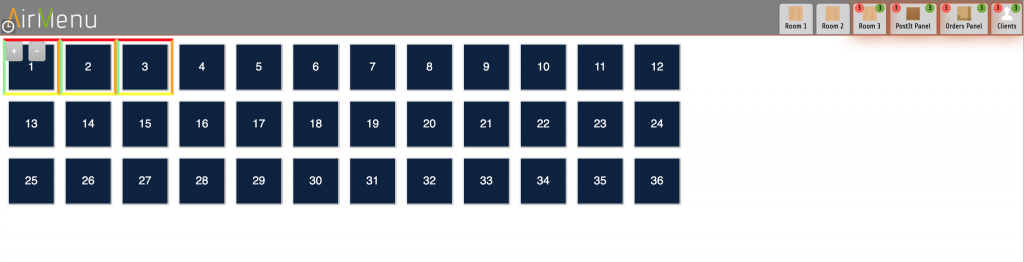
The seat chart as of 6/2.Now let’s change the Preview Booked Orders to 6/26.
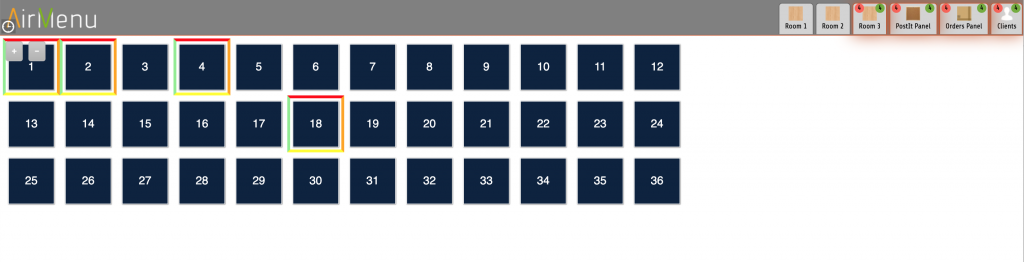
The seat chart as of 6/26Notice the occupied spots have changed. Now you can access and make changes individually. The filtering of dates will also impact the other panels.
Notice the top bar turns to gray to indicate there is a date restriction in place.
To remove the date restriction, go to the gear icon on the top left and click reset to realtime mode.
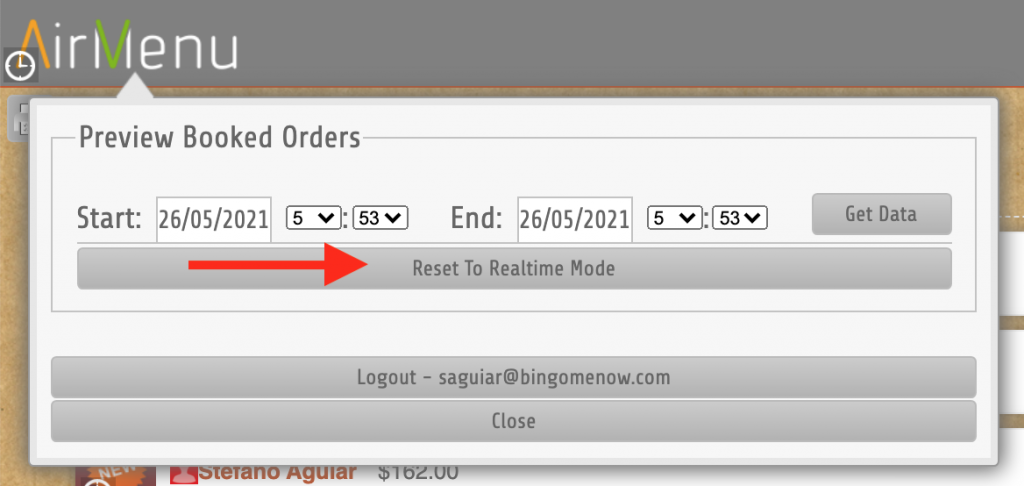
Reset to realtime mode.